Clone objects in Salesforce between two separate orgs is both essential and complicated for admins. Even slight ignorance across dependencies, field mappings, validation rules, and permissions can break functionality or cause errors in your org.
If you’re someone dealing with manual object recreation or error-prone deployments across orgs, you must be familiar with the complexities. This guide will introduce you to a smarter, seamless way to clone Salesforce objects across orgs.
Common Challenges Admins Encounter During Manual Clone Salesforce Objects
Before jumping into the resolution, it’s important to understand the shortcomings of manual object cloning-
- Complex dependencies: Objects are often linked to fields, relationships, validation rules, and flows, which must be replicated in parallel.
- Time-consuming process: Recreating each object component manually is tedious and inefficient.
- High error risk: Skipping a single dependency can break the entire setup
- Inconsistent orgs: Differences between orgs can lead to unexpected issues.
This is where admins need a smoother and more efficient alternative to manually clone objects in Salesforce.
migSO- The Ultimate Clone Salesforce Objects App
migSO is the leading Salesforce Metadata Management app, empowering admins to clone objects across the same or different orgs. This advanced feature helps you overcome the limitations of manual object cloning and enables you to seamlessly clone Salesforce objects along with relevant fields, relationships, record types, validation rules, and field sets. Admins can simultaneously set object permissions as per their requirements.
Detailed Steps to Clone Objects in Salesforce using migSO
Here are the simple steps the admin needs to follow to clone Salesforce objects across their orgs-
Step 01: Click “App Launcher,” then search for and select migSO.
Step 02: Now click the migSO “Clone Wizard” menu.
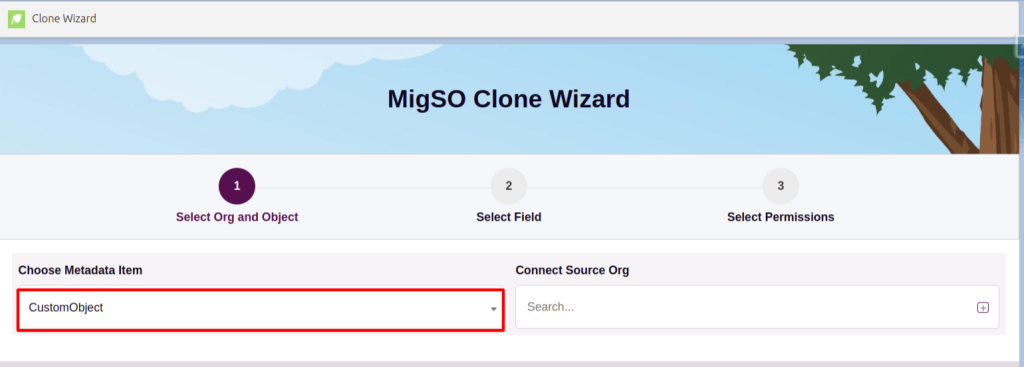
Step 03: Select the metadata item to clone (e.g., Custom Object).
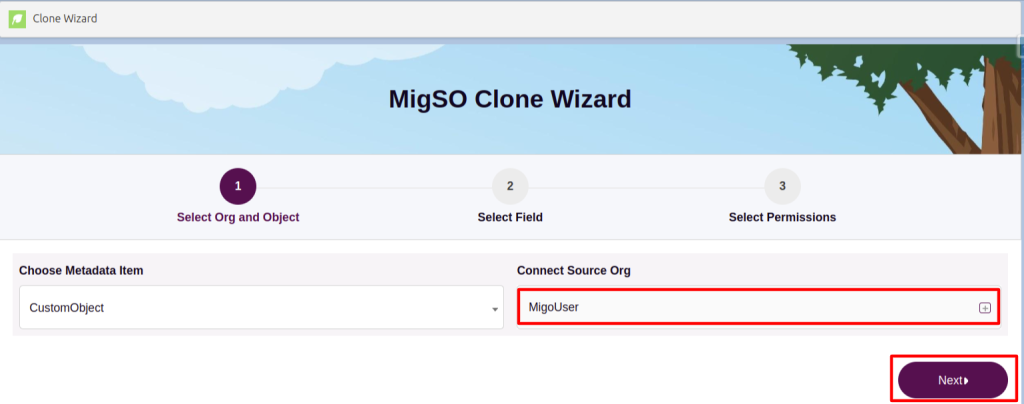
Step 04: Select the source org or connect a new one. To add a new org, click on the ‘+’ icon, enter details like org name, user name, password, and security, and click on the Save button.
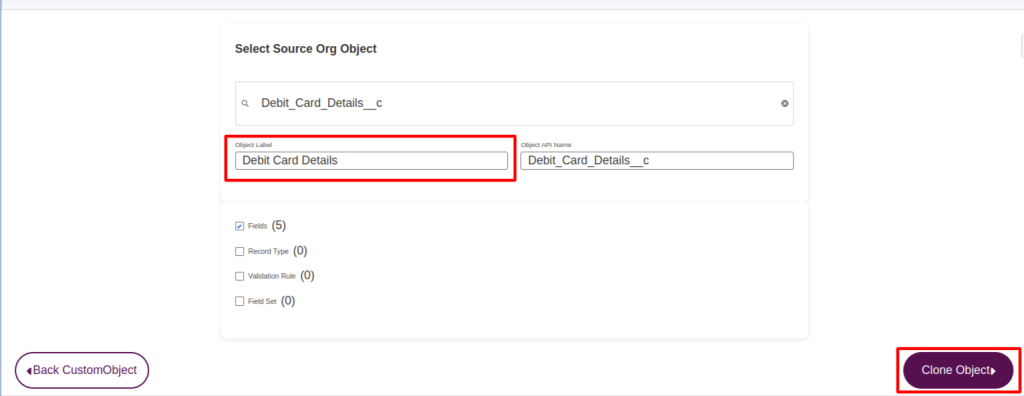
Step 05: Select the custom objects to clone.
Step 06: Edit the Object name by clicking on the Object Label. After this, you can select the fields, validation rule, record type, and field set to deploy. Now, Click Clone Object.
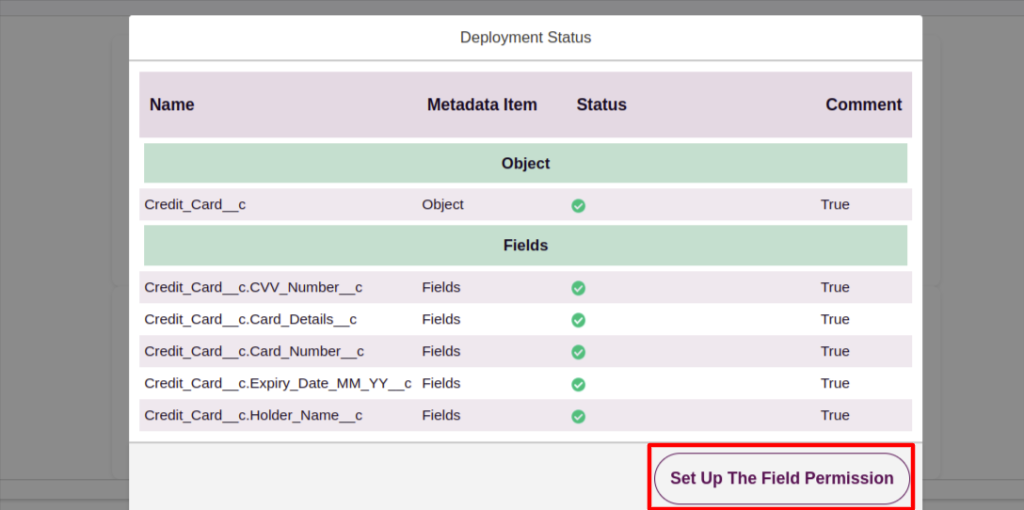
Step 07: Review the deployment status and click Set Up the Field Permission.
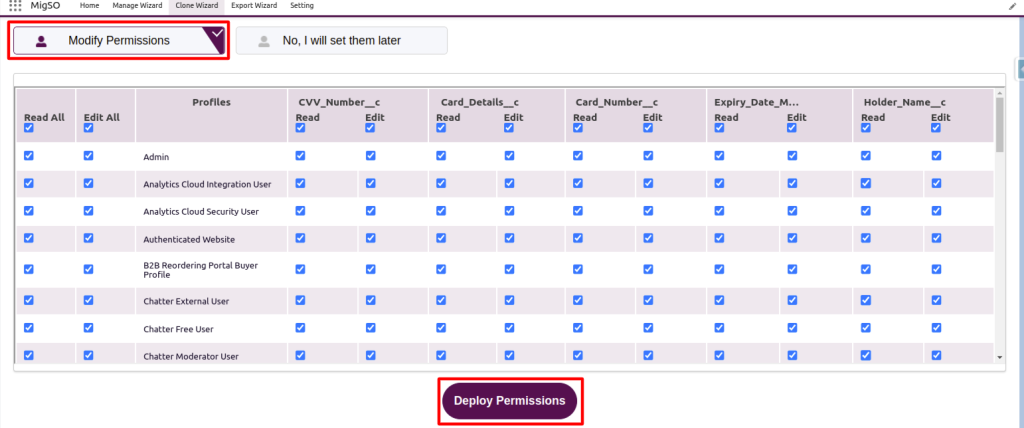
Step 08: You can now set permissions or choose to do it later. If now, choose permissions for each profile and click Deploy Permissions.
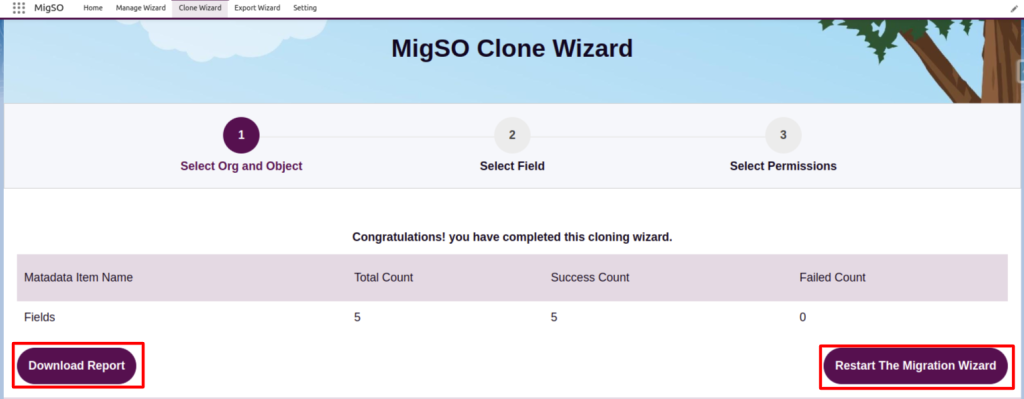
Step 09: Review the deployment status, download the report, or restart the wizard.
Woohoo! You have successfully deployed custom objects from one org to another.
Conclusion
It seems that clone objects in Salesforce across orgs doesn’t have to be complicated after all. With migSO, admins can turn the tedious default process into a quick, seamless one. Get ready to clone Salesforce objects along with relevant permissions, fields, relationships, page layouts, record types, validation rules, and flows.
Who Are We?
Tech9logy Creators is a Registered Salesforce Consulting and ISV Partner Company with over 10 years of experience. We have a certified team of developers with extensive knowledge about Salesforce AppExchange and provide you with the best-in-class personalized apps. Our dedicated Salesforce experts help you bring the best out of your CRM and ensure your business operates at its highest potential.
Contact us for more information.

Recent Post


migSO Guide