Permission sets are specialized metadata component that empowers admins to grant users additional access to tools and features beyond what their profiles allow. Admins often need to clone Permission Sets across orgs to ensure consistency. However, creating permission sets manually is both tedious and error-prone.
Even a slight delinquency in this matter can cause users to lose access to essential apps, fields, objects, and other components. So, is there a smarter way to manage permission sets? The answer is Yes, this is where you can explore the magical world of migSO! Before getting into the associated steps, let’s first discuss the problems with manually creating permission sets.
Common Challenges Admins Encounter During Manual Permission Set Cloning
Here are the problems admins generally face during manual permission cloning across orgs-
- Time-consuming manual effort
- Human errors & neglected permissions
- Inconsistent access across orgs
- Difficulty tracking dependencies
- Risk of over-permissioning users
That’s why admins often demand an easy, time-saving option for cloning permission sets.
migSO- The Best Salesforce Permission Sets Cloning App
migSO, the #1 Salesforce metadata management app, empowers admins to skip manual permission set cloning, eliminating the risk of mismanagement and ensuring consistency across your orgs. It enables
Detailed Steps to Clone Permission Set Using migSO
The process of cloning Permission Sets is super easy with our app! All you need to do is follow the given steps after installing our package:
Click “App Launcher,” then search for “migSO”.
Now, click the ” migSO Clone Wizard” tab.
Select the Metadata item to clone (e.g., Permission Set).
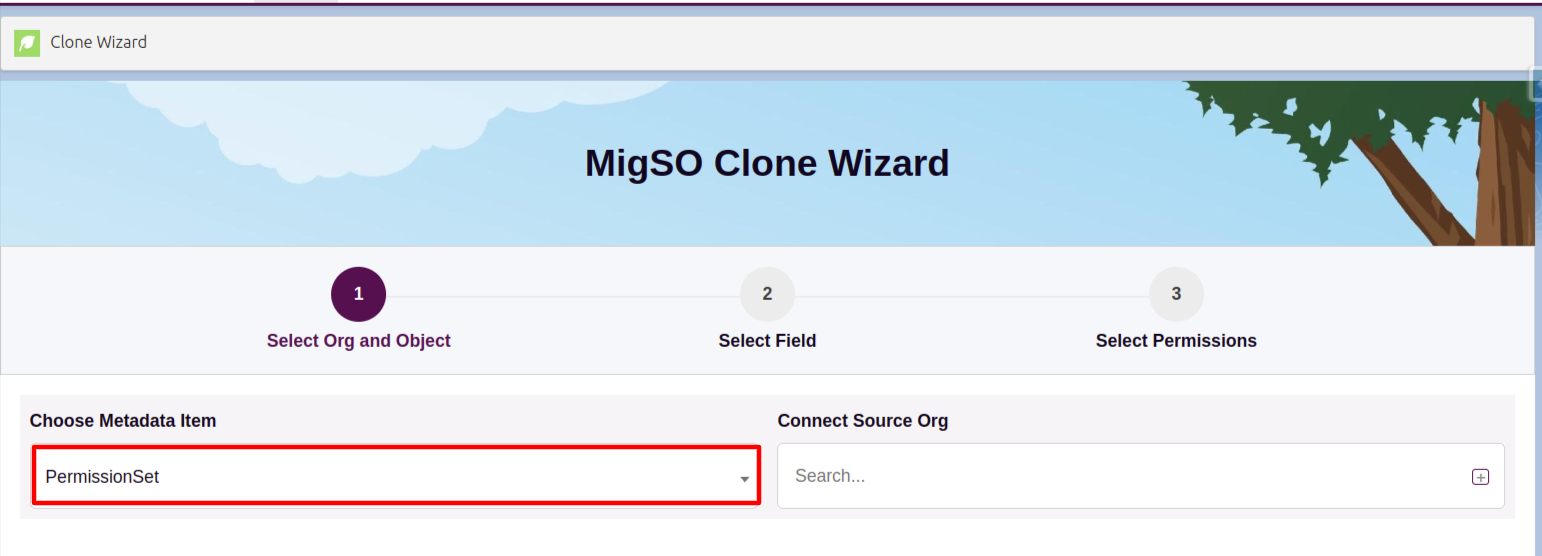
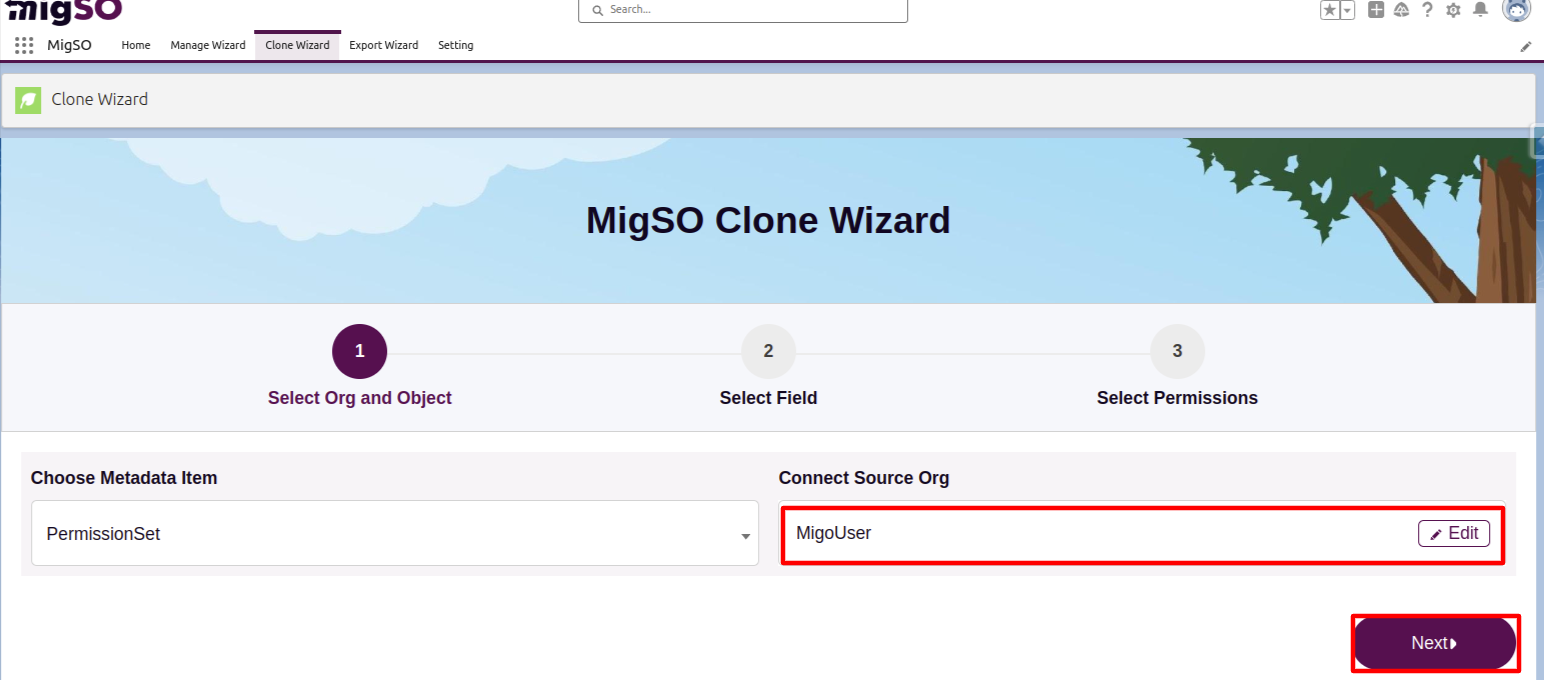
Select the source org or connect a new one. To add a new org, click on the ‘+’ icon, enter details like org name, user name, password, and security token, and click on the Save button.
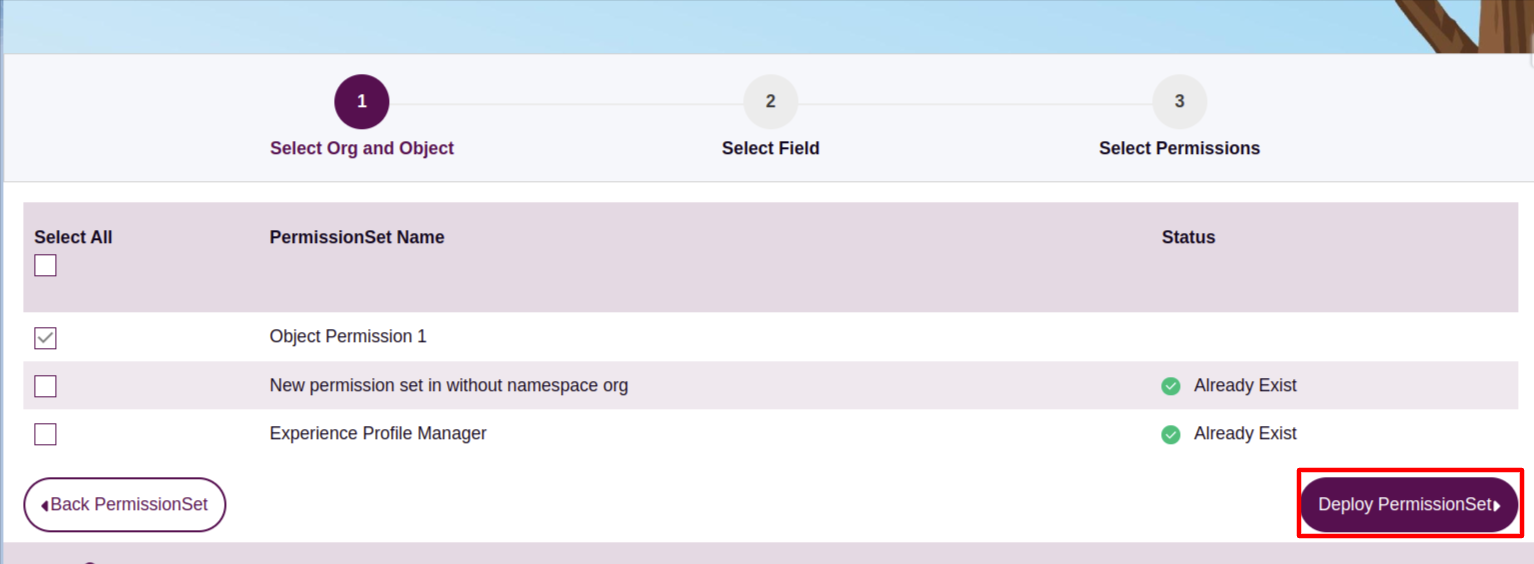
Select the Permission Set Name to clone or click Select All, then click Deploy PermissionSet.
Review the deployment status and click Generate Report.
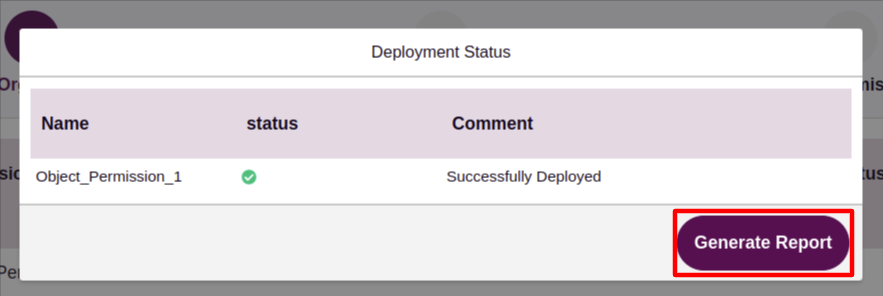
Review the deployment status, download the report, or restart the wizard.
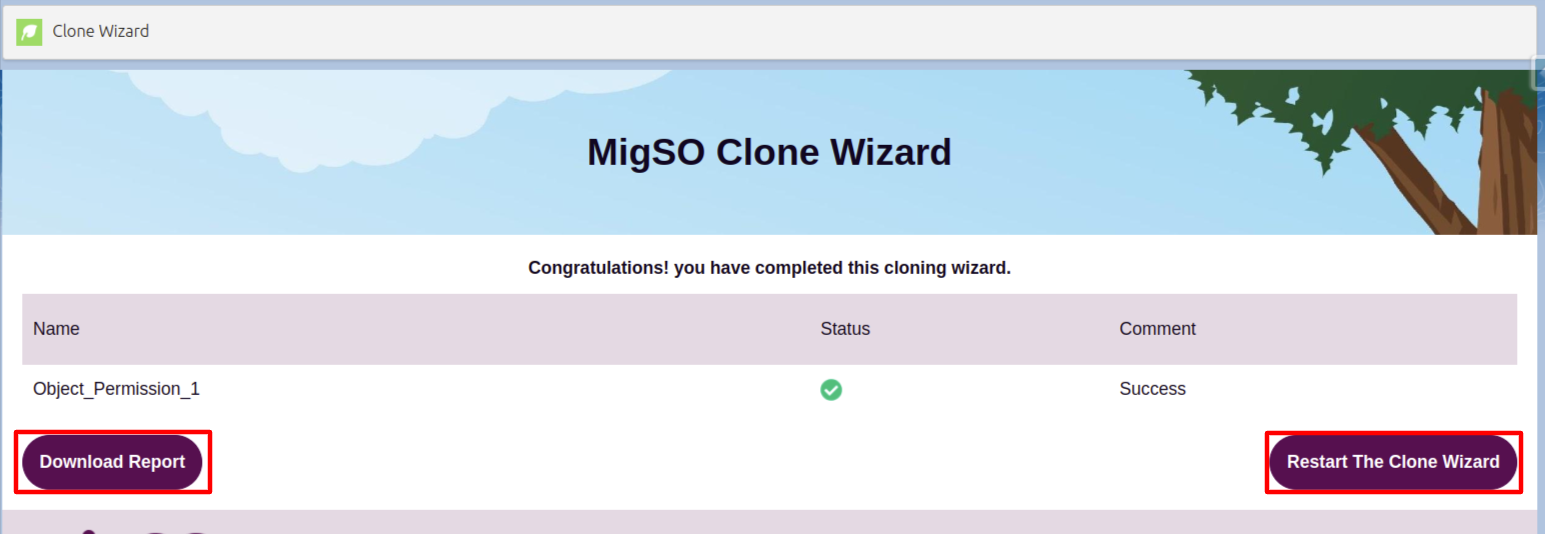
Woohoo! You have successfully deployed Permission Sets from one org to another.
Conclusion
Manually cloning permission sets is both time-consuming and error-prone for admins. migSO streamlines this process and saves admins time by empowering you to clone permission sets in bulk. It serves as a one-stop destination for all your metadata management needs.
Who Are We?
Tech9logy Creators is a Registered Salesforce Consulting and ISV Partner Company with over 12 years of experience. We have a certified team of developers with extensive knowledge of the Salesforce AppExchange and provide you with the best-in-class, personalized apps. Our dedicated Salesforce experts help you bring the best out of your CRM and ensure your business operates at its highest potential.
Contact us for more information.

Recent Post
migSO Guide
Metadata Backups Made Easy with migSO
Views: 28